UsersStart here10 min read
Navigate your workspace and queues
Use the app rail, module navigation, Dashboard, notifications, and status history to find work without creating duplicates.
Who can do this
Any organization member
Primary route
/dashboard
Last verified
4 August 2026
01
Use the three navigation layers
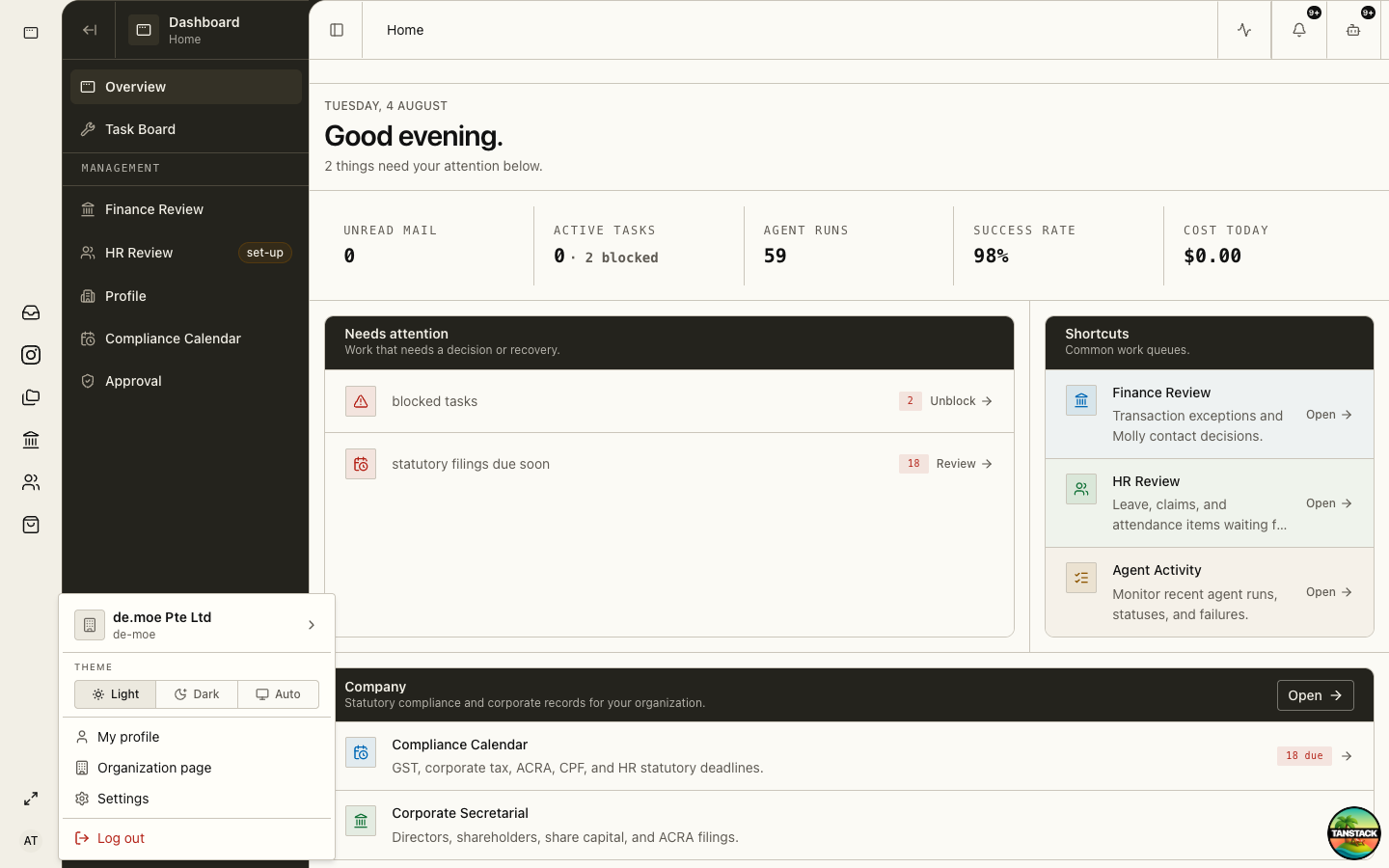
The narrow left rail switches modules, the expanded rail navigates within the current module, and the page header confirms location and entity.
- Dashboard: cross-module attention and management shortcuts.
- Module icon: opens Finance, HR, Inbox, Channel, Storage, Store, or another subscribed app.
- Expanded module rail: opens the exact queue or record type.
- Account menu: changes organization, theme, profile, settings, or signs out.
02
Start from attention and assigned queues
Open the underlying record before acting. Counts and cards are navigation aids, not sufficient evidence for approval.
- Review Needs attention on Dashboard.
- Open the relevant Finance Review, HR Review, Compliance, Approval, or Task Board record.
- Read its status, owner, source, attachments, and history.
- Use the supported action on the existing record instead of creating a duplicate.
03
Follow status and history
Draft, submitted, returned, approved, posted, paid, and filed are different states. Confirm the state that represents actual completion for the workflow.
04
Leave an attributable audit trail
Use your own account and add a concise reason when returning, rejecting, correcting, or overriding a proposal.
Troubleshooting
- A count does not match a queue: reload, verify filters and organization, then report the record IDs involved.
- A direct link redirects away: the module is unavailable or your role lacks access.
- The page keeps showing stale data: confirm the Syncing indicator settles, then reload once.